CZL Documents: Free Trade Document Generator—Enter Once for Invoices, Packing Lists and Customs Declarations
The former “CZL Invoice Generator” has been upgraded to a Windows desktop application, “CZL TradeDocs” (CZL TradeDocs). It generates commercial invoices, pro forma invoices, packing lists, export customs declarations, and declaration details, with export to PDF or Excel. Your data stays on your own computer.
Official overview and download: https://www.czl.net/cn/tradedocs
From a Web Tool to Desktop Software
The original invoice generator was a web tool on our official website. It could create PIs and CIs, with data stored in the browser. As more people used it, feedback centered on a few issues: records disappeared after switching browsers or clearing the cache; packing lists had to be created separately after completing invoices; and customs declaration documents required other software.
So this version is a standalone desktop application, and its name has changed from “Invoice” to “TradeDocs,” because it now generates more than just invoices.
One Shipment, One Entry, Multiple Documents
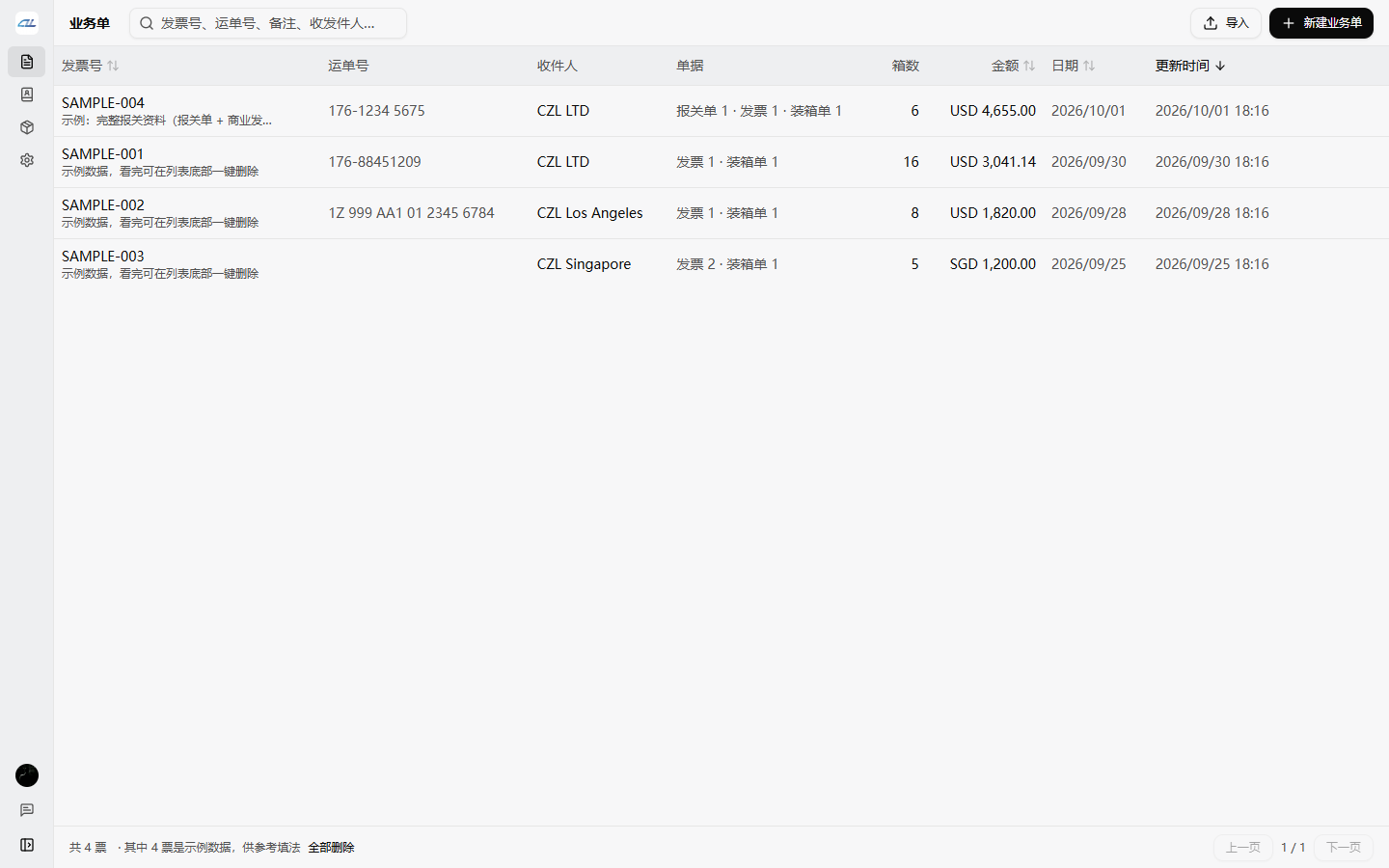
The basic unit in the software is a “shipment record.” Each shipment has its own record. Enter the sender, recipient, and item details once, then attach multiple documents to that record:
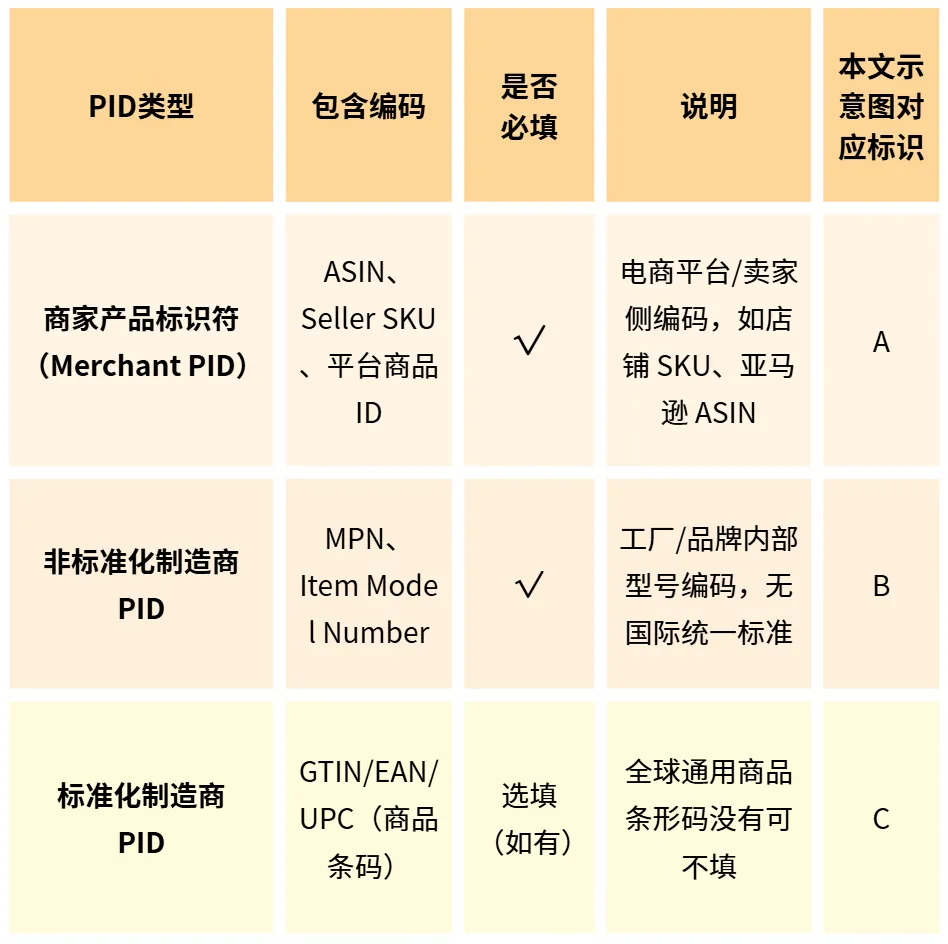
| Document | Description |
|---|---|
| Commercial Invoice (CI) | For customs declaration and customs clearance |
| Pro Forma Invoice (PI) | For quotations and advance payments |
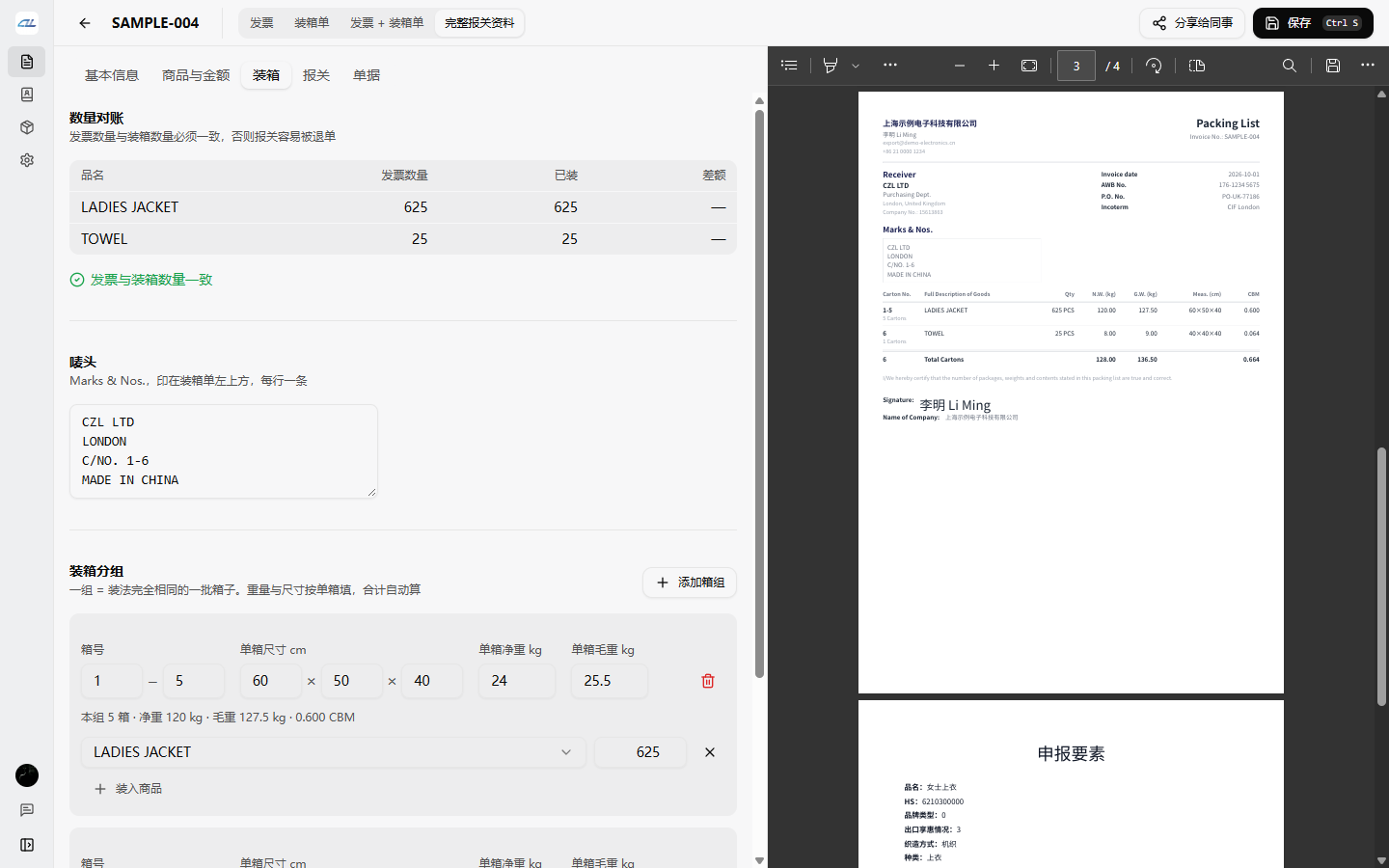
| Packing List (Packing List) | Grouped by carton, with automatic totals for carton count, net weight, gross weight, and volume |
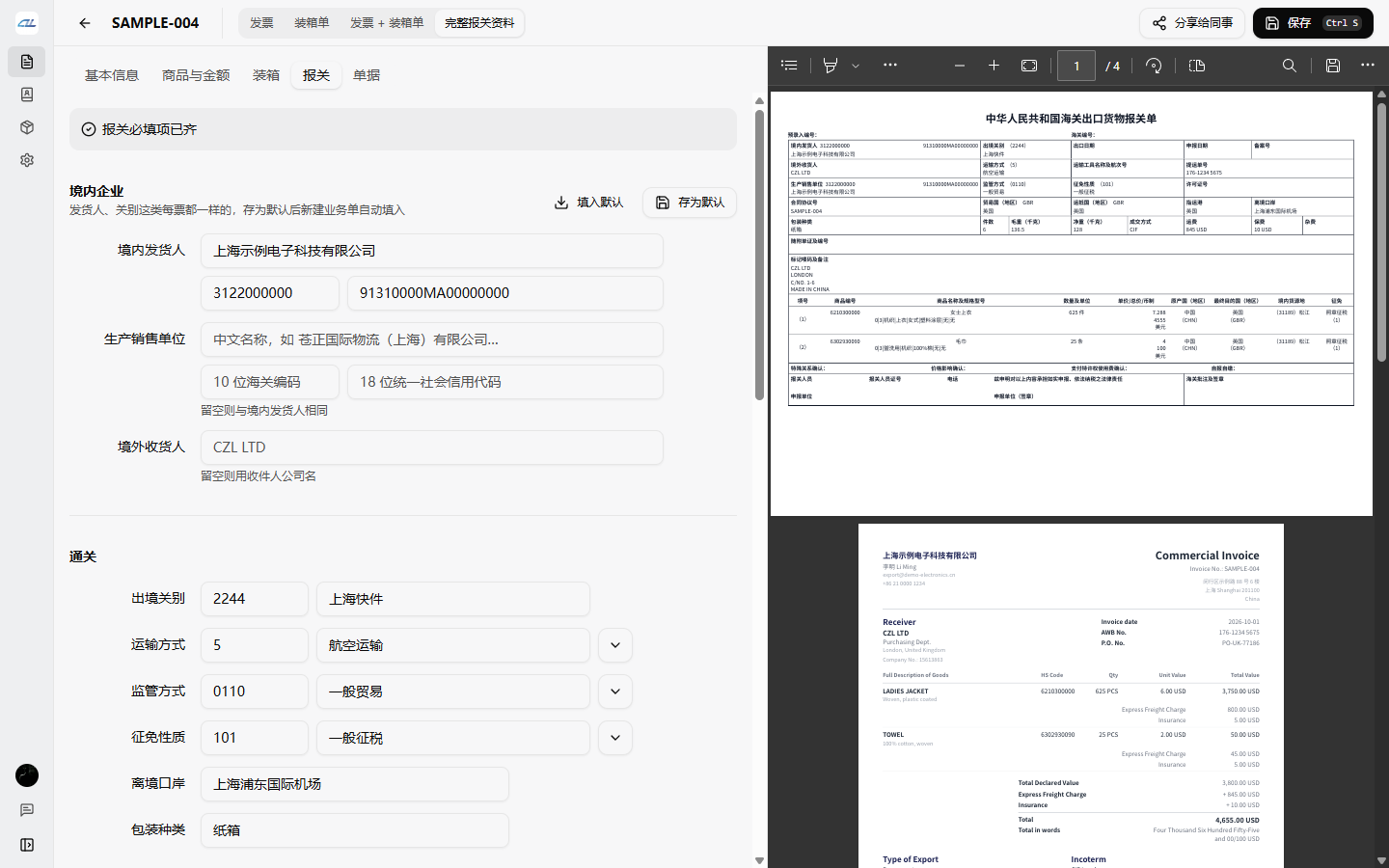
| Export Customs Declaration | Laid out according to customs fields, with package count and weight taken from the packing list |
| Declaration Details | Specifications and model information are automatically assembled from the declaration details |
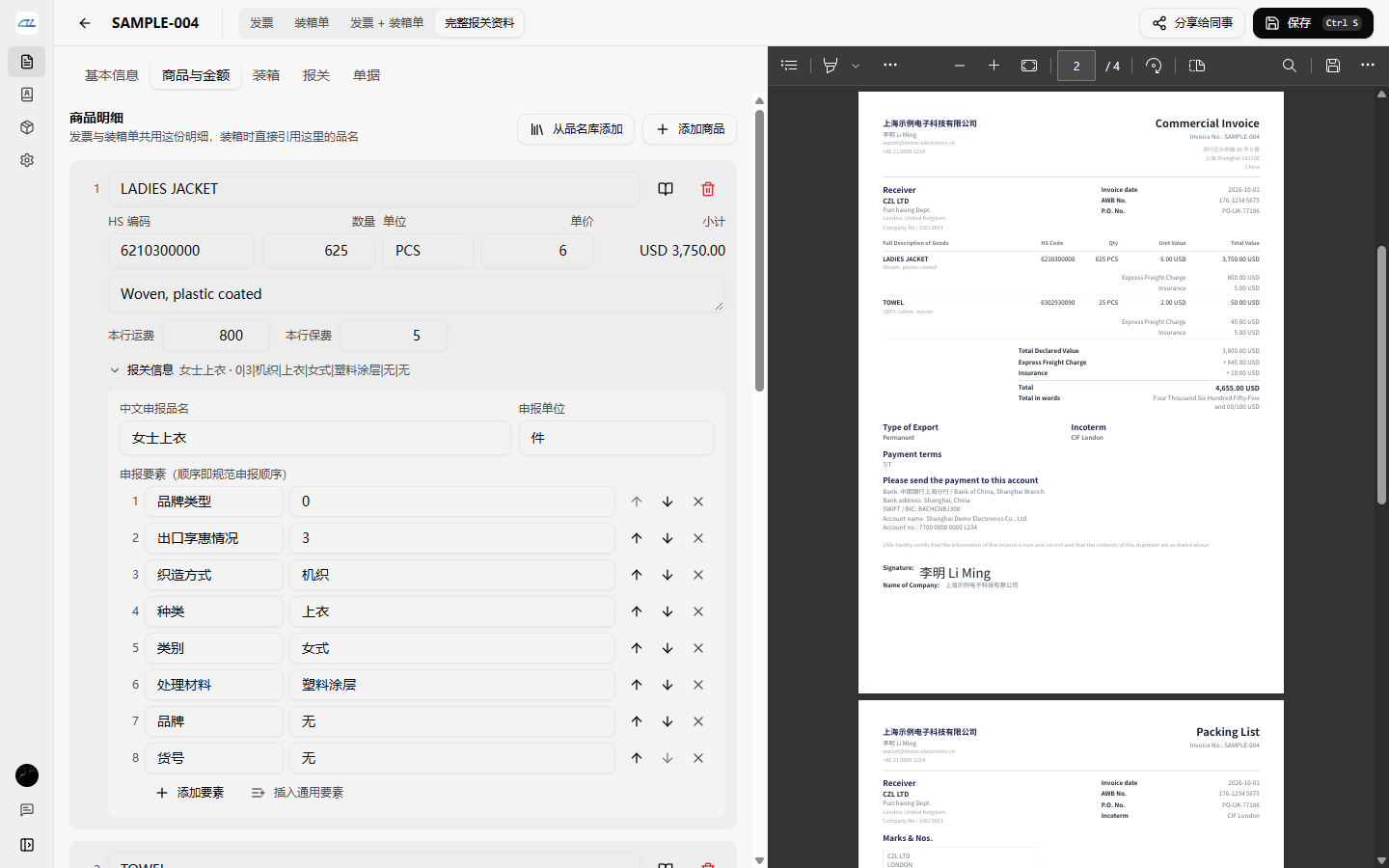
After creating an invoice, you can generate a packing list without retyping product descriptions and quantities. If you change a quantity on the invoice, the packing list will alert you to the mismatch. Inconsistent quantities between invoices and packing lists are one of the most common reasons customs declarations are rejected. Since each document looks complete on its own, these discrepancies can be difficult to spot.
Generate Only What You Need, Hide Unused Fields
Switch document combinations with one click in the top bar:
- Invoice only
- Packing list only
- Invoice + packing list
- Complete customs declaration set (customs declaration + commercial invoice + packing list + declaration details)
When creating only an invoice, all packing and customs declaration fields are hidden, keeping the form as simple as before. Switch to customs declaration mode when needed, and those fields appear. Previously entered information is retained while the fields are hidden.
Key Features
Automatic Amount Calculations
- Subtotals, discounts, taxes, and shipping charges are calculated automatically. Amounts in words are generated in check-writing format (such as Three Thousand Forty-One and 14/100)
- Supports FOB, C&F, CIF, C&I, and EXW terms. Enter freight and insurance charges for each line item; they are listed line by line on the invoice and automatically included in the customs declaration unit price
- Supports multiple currencies
Packing Lists Grouped by Carton
- Enter a group of identically packed cartons once. For example, carton numbers 1-10 represent 10 cartons, and each group can contain multiple product descriptions
- Enter weight and dimensions per carton, and totals are calculated automatically. The PDF shows total weight and individual carton dimensions, following standard practice
Customs Declarations and Declaration Details
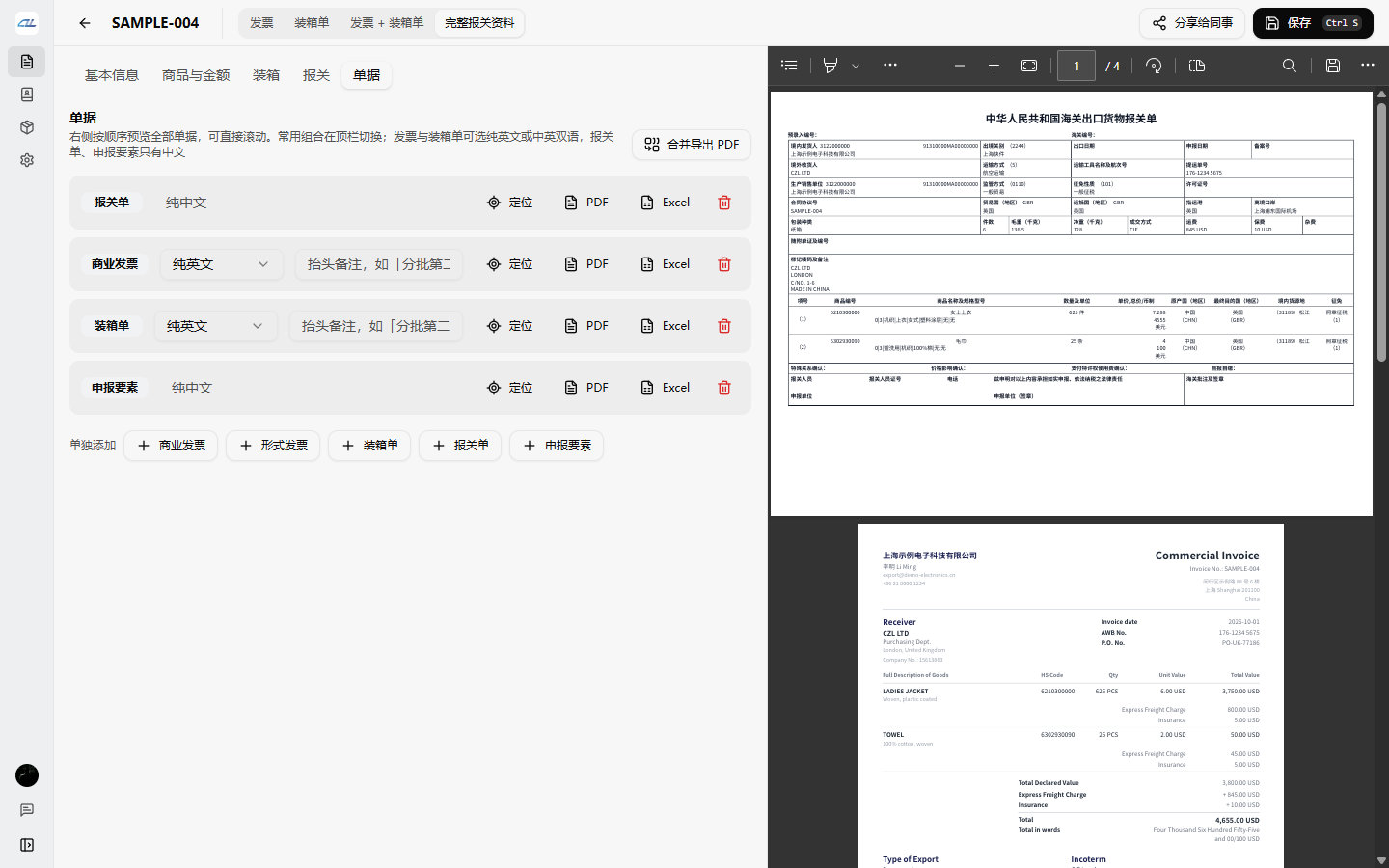
For formal customs declaration when shipping by international courier or dedicated line, you need one customs declaration, two invoices, two packing lists, and one declaration details sheet. For specific requirements and CIF / C&F / FOB templates, see Customs Declaration Document Templates and Completed Examples for International Shipments (Courier and Dedicated Line). These documents can now be generated directly in CZL TradeDocs: switch to “Complete customs declaration set” in the top bar, enter the shipment details, export everything as a single PDF, then print and stamp it.
- Alerts you if the HS code, Chinese product description, declaration details, or shipper’s customs registration code is missing, without preventing you from saving
- If the contract/agreement number, overseas consignee, marks and numbers, or bill of lading/waybill number is left blank, the software automatically uses the invoice number, recipient, shipping marks, or tracking number, respectively
- Information that stays the same across shipments, such as the shipper, customs office, and country, can be saved as defaults and filled in automatically when you create a new shipment record
Product Description Library and Address Book
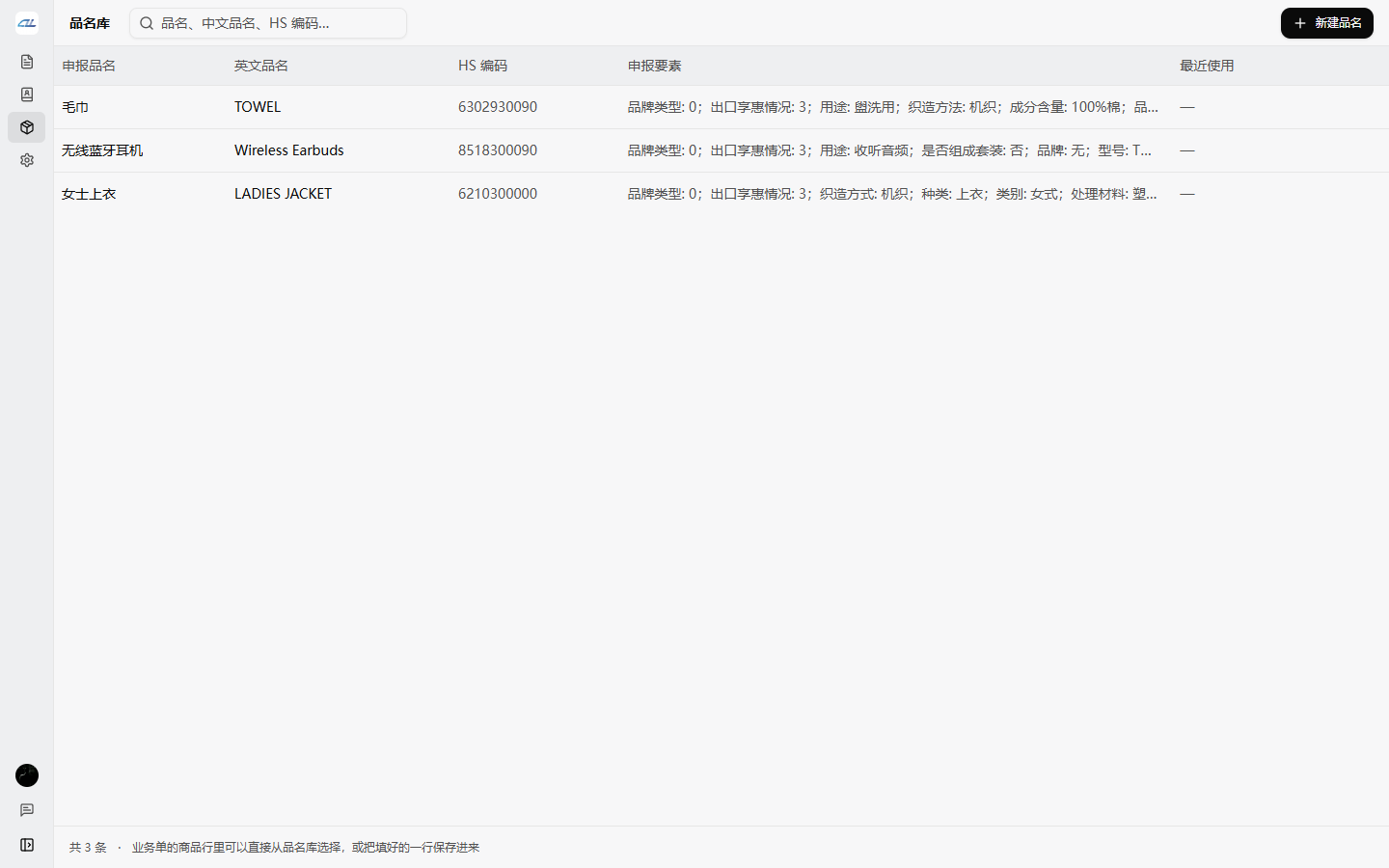
- Save product descriptions, HS codes, Chinese declaration product descriptions, and declaration details in the product description library for automatic retrieval the next time you create documents
- Save frequently used senders and recipients in the address book, set defaults, and fill them in with one click
- Changes to the product description library or address book do not affect documents already created
Export and Preview
- PDFs use vector text that can be copied and searched, with embedded Chinese fonts
- Choose English-only or bilingual Chinese-English output for each document individually; customs declarations and declaration details are in Chinese
- Preview all documents in real time on the right, and export them as a single combined PDF or individually
- Values exported to Excel are actual numbers, so you can continue calculating directly in the spreadsheet
- All dates in PDFs use YYYY-MM-DD to avoid ambiguous formats like 01/02/2026
Data Security
- All business data is stored locally on your computer and is not uploaded to a server. Signing in with your CZL Connect account is only for identity verification; no documents are synced
- After signing in once, you can use the app offline
- Full backup and restore are supported, with one-click migration when switching computers
- Individual documents can be exported as
.czlinvfiles and sent to colleagues, who can import them and continue editing
Installation and Updates
- Visit the official CZL Trade Documents page to download the latest installer (Windows 10 / 11)
- Double-click to install. The app installs in your current user directory, with no administrator privileges required
- Sign in with your CZL Connect account the first time you open the app, then use all features for free
- The app will notify you when a new version is available. Update with one click, with all your data preserved
For users of older versions:
- If you used the previous desktop version, “CZL Invoice,” simply update online or install over the existing version. Your business documents, contacts, and sign-in status will migrate automatically
- If you used the earlier Electron desktop version, select “Export → JSON” in the old version, then select those files for import on the “Settings” page in the new version. They will be automatically converted into business documents in the new format
Who It’s For
- Cross-border e-commerce sellers and international trade sales representatives
- International freight forwarders and courier agents
- Small import and export companies that prepare their own customs declaration documents
The app includes a few sample documents when you first open it. Review them to see how to fill out your own. If you run into any issues, leave a comment in the SunAI forum feedback thread or email [email protected].